How to Use Codex Cloud: Set Up Environments, Run Tasks from the CLI, and Use Codex on Your Phone
A developer tutorial for Codex Cloud: connect GitHub, publish a cloud environment, start and apply tasks with codex cloud, and start, review, and approve Codex work from the ChatGPT app on iOS or Android.
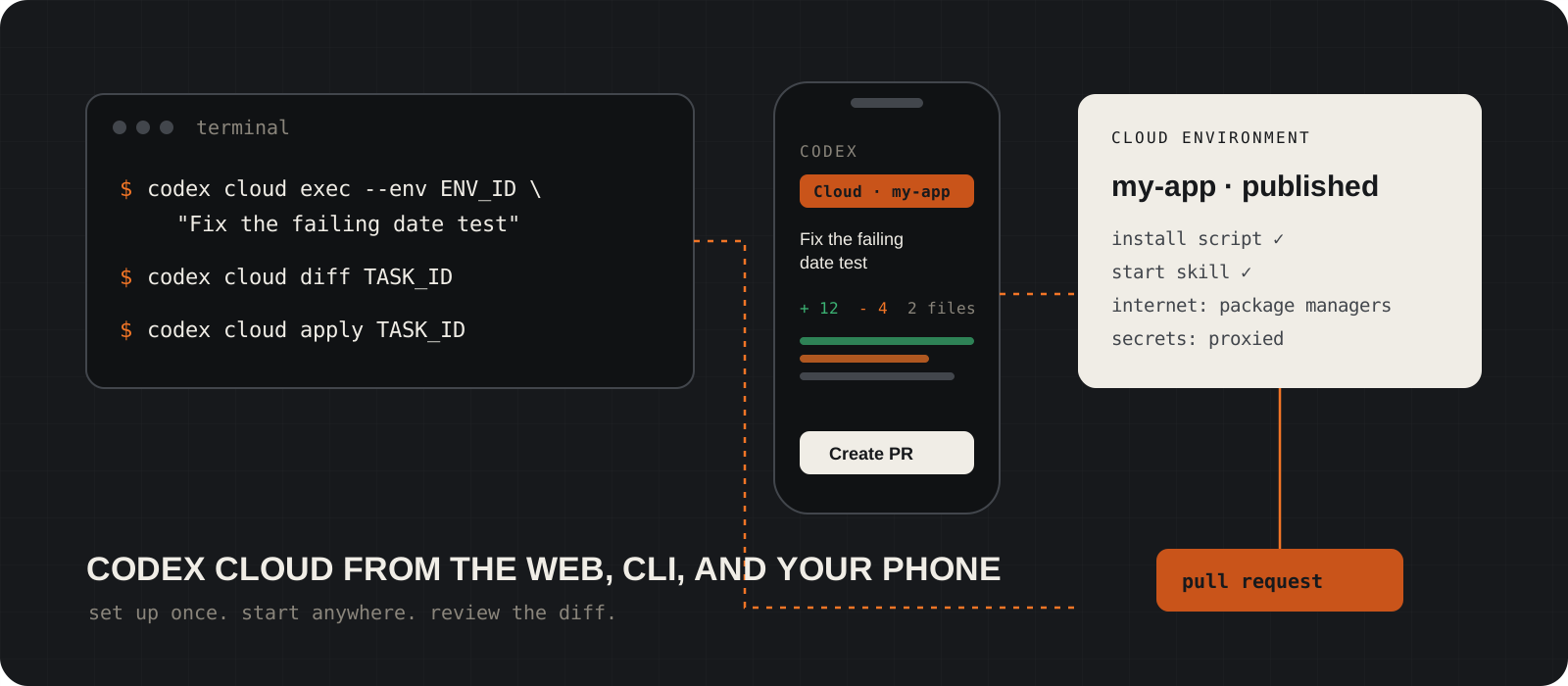
To use Codex Cloud, connect a GitHub repository in ChatGPT, let Codex prepare and publish a cloud environment, then start tasks against that environment from the web, the desktop app, the codex CLI, or the ChatGPT app on your phone. Each task runs in its own isolated workspace on an OpenAI-managed computer, so it keeps going when your laptop is closed. You review the diff and test results, ask for follow-ups, then open a pull request or pull the change into your local checkout. This guide sets up one environment, runs a task from each surface, and covers the separate remote control mode that lets your phone drive Codex on your own Mac or Windows PC.
System requirements
Account
A ChatGPT plan with Codex Cloud
Codex is included in ChatGPT Free, Go, Plus, Pro, Business, Edu, and Enterprise. OpenAI's cloud VM table lists Plus and higher plans, so Free and Go users should confirm cloud access on the pricing page. An API key alone gives no cloud features.
Code host
A GitHub repository you can push to
Codex Cloud checks out repositories from GitHub. GitLab and self-hosted GitHub Enterprise Server are not supported.
Phone (optional)
The latest ChatGPT app on iOS or Android
Sign in with the same account and workspace you use on the web. Mobile availability depends on rollout and workspace settings.
Computer (optional)
Codex CLI on Windows, macOS, or Linux
Needed only for the terminal workflow in step 6. Remote control from your phone (step 8) needs the ChatGPT desktop app on macOS or Windows instead.
Facts checked
23 October 2026
Checked against OpenAI's Codex Cloud, cloud environments, mobile, remote connections, GitHub, and pricing docs, and the codex cloud source in openai/codex at rust-v0.164.0. Menus and limits change, so re-check before you rely on them.
What is Codex Cloud, and when should you use it?
Codex Cloud runs tasks on OpenAI's computers instead of yours. Use it for work you want to start now and review later.
The Codex CLI and the desktop app run on your machine, with your files, your tools, and your approvals. Codex Cloud runs the same agent in a cloud VM that starts from a prepared copy of your repository.
Good cloud tasks are self-contained: fix a failing test, add a small endpoint with tests, update a dependency, write docs for a module. You can start several in parallel and keep working locally.
Keep a task local when it needs your running database, a private network the cloud VM cannot reach, a browser, or quick back-and-forth edits. Computer use and browser use are not supported in cloud tasks.
Mobile is a remote for both modes. From the phone you can start a cloud task, or control Codex on a computer you paired. The table in the trade-offs section compares the three.
How do you create a Codex Cloud environment?
Create it once on the web or desktop app. Codex inspects the repository and writes the setup for you.
Open chatgpt.com in a browser or the ChatGPT desktop app. Go to Work in > Cloud, open Select environment, and select Create environment. You cannot create an environment from the phone.
Choose one or more GitHub repositories and select Get started. Connect GitHub if ChatGPT asks. Grant access only to the repositories Codex needs.
Codex inspects the repositories and identifies runtimes, package versions, tools, and services. It installs them, runs your checks, and records the result as an Install script (dependencies) and a Start skill (start services and check they are ready).
If setup stops and asks for something, such as a missing environment variable or a private package registry, give it that value and let it retry.
Tip
A README with the exact install and test commands makes setup faster. Codex reads the repository to work out how to build it.
Set internet access, variables, and secrets
Give the environment only the network access and credentials its tasks need.
Internet access: turn on Allow Codex to access internet only if tasks need it. Under Allow domains, the Package managers preset covers npm, PyPI, crates.io, Go, Maven and Gradle, GitHub, and Ubuntu and Debian repositories. Custom domains only and All (unrestricted) are the other options.
Environment variables are passed directly to programs. Use them for non-secret settings such as NODE_ENV or a test database URL that points to a local service.
Network secrets are safer for tokens. Programs see a placeholder, and the network proxy swaps in the real value only for allowed destinations over HTTPS on port 443. The raw credential never lands in a file or process. Saving a network secret also allows its domains.
Under Privacy > Who can use, choose Only me or your workspace. Sharing an environment shares its setup, not your personal credentials or your tasks.
Tip
Allowing a domain does not log Codex in to that service. It only lets traffic through. Credentials still come from a secret.
Publish the environment and run your first cloud task
Publishing freezes the prepared filesystem. Every new task starts from that snapshot.
Review the setup and the test results, save, and select Publish. Wait for Environment published.
Select Start a new task, pick the environment and branch, and describe the task. Write it like a ticket for a teammate: the goal, the files or area, how to check the result, and what not to touch.
When the task finishes, review the changed files, the diff, and the test output. Send a follow-up in the same task if something is off. The task keeps its own files, including uncommitted changes, between turns.
When the change is right, commit it or open a pull request from the task view. Review the pull request on GitHub the same way you review a teammate's.
Fix the failing test in tests/test_dates.py.
The parse_due_date helper should accept ISO dates with a timezone offset.
Change only src/dates.py and the test file.
Run: pytest tests/test_dates.py
Explain the cause in two sentences before the diff.
Tip
A task's saved VM state is recoverable for up to seven days after you last used it. That is not a backup. Open a pull request for anything you want to keep.
Add an AGENTS.md so tasks follow your rules
Codex reads AGENTS.md files in the repository. Put build, test, and style rules there once.
Commit an AGENTS.md at the repository root. Keep it short and specific: how to run tests, which linters must pass, and which folders not to touch.
Codex picks up AGENTS.md in cloud tasks, local tasks, and GitHub reviews. Skills stored in your repository are available in cloud tasks too.
For pull request reviews, add a Code Review Rules section. Put it in the AGENTS.md closest to the code those rules cover.
# Agent instructions

## Build and test
- Install: pnpm install --frozen-lockfile
- Test: pnpm test
- Lint: pnpm lint (must pass before you finish)

## Rules
- Do not edit files in migrations/ or generated/.
- Keep changes small. One task, one concern.

## Code Review Rules
- Flag any SQL built with string concatenation.
- Flag new dependencies that are not pinned.Start and apply cloud tasks from the codex CLI
Use codex cloud to submit a task from your terminal, check it, and pull its diff into your local checkout.
Install or update the Codex CLI and sign in with Sign in with ChatGPT. Cloud tasks need the ChatGPT sign-in, not an API key.
Run codex cloud with no arguments to browse your environments and tasks in the terminal UI. Copy the environment ID you want from there.
codex cloud exec submits a task without opening the UI. --env is required. --branch picks the branch and defaults to your current one. --attempts runs 1 to 4 independent attempts at the same task (best-of-N).
codex cloud list shows up to 20 tasks per page, with --env to filter and --json for scripts. status, diff, and apply take a task ID. Use --attempt N with diff or apply to choose one attempt.
codex cloud apply writes the diff to your working tree. It does not commit. Run your tests, then commit as usual.
curl -fsSL https://chatgpt.com/codex/install.sh | shpowershell -ExecutionPolicy ByPass -c "irm https://chatgpt.com/codex/install.ps1 | iex"npm install -g @openai/codexcodex
codex cloudcodex cloud exec --env ENV_ID --attempts 2 \
"Fix the failing test in tests/test_dates.py. Run pytest before you finish."codex cloud list --env ENV_ID --limit 5
codex cloud status TASK_ID
codex cloud diff TASK_ID --attempt 2
codex cloud apply TASK_ID --attempt 2Tip
The Windows line continuation in PowerShell is a backtick, not a backslash. Or put the whole exec command on one line.
How do you use Codex Cloud on your phone?
Open Codex in the ChatGPT app, choose Cloud and an environment, and describe the task.
Install or update the ChatGPT app from the App Store or Google Play. Sign in with the same account and workspace you used to create the environment.
Open Codex. On a new task, choose Cloud, pick the environment and branch, then type or dictate the task. The environment must already be published from the web or desktop app.
The task list shows cloud tasks and tasks on connected computers together. It marks tasks that need your input, so you can answer a question from Codex without opening a laptop.
Open a finished task to read the response, the changed files, the diff, and the test results. Send a follow-up, or open a pull request when it looks right.
The app needs a network connection. Codex never runs on the phone itself. It runs in the cloud or on your connected computer.
Tip
A phone screen is fine for small diffs. For a large change, start it from the phone and do the review on a bigger screen.
Control Codex on your own computer from your phone
Remote control is a separate mode. Your phone drives Codex on a Mac or Windows PC, with your local files and tools.
Use this mode when the task needs something only your machine has, such as a local database, a VPN, or an uncommitted branch. Setup starts in the ChatGPT desktop app. The Codex CLI and the IDE extension cannot start pairing.
On the computer, open the ChatGPT desktop app and go to Settings > Connections > Control this Mac or PC. Select Set up or Add, and approve remote access.
Scan the QR code with your phone. Confirm the same account and workspace, then finish any MFA, SSO, or passkey prompt. Pair each phone with each computer it will control.
In the phone app, open Codex and choose your computer and project. If the app still shows Remote, open that instead.
Codex asks before it runs commands on your computer. On the phone you can choose Approve, Always approve, Tell Codex what to do, or Deny. Sandboxing and approval rules still apply.
Keep the computer awake and online. A Mac laptop stays reachable with the lid open and power connected. With the lid closed it also needs an external display. On Windows, Computer Use runs in the foreground, so keep the session unlocked.
Tip
Only pair devices you own. In a company workspace, an admin may need to enable Remote Control access first.
Ask Codex to review pull requests on GitHub
Once the repository is connected, a comment on any pull request starts a review.
Comment @codex review on a pull request. Codex reacts with an eyes emoji and then posts a review, focused on high-priority (P0 and P1) issues.
Add a focus to the comment, such as @codex review for security regressions. Use @codex security review for the security review, which OpenAI lists as a research preview.
To review every pull request automatically, open chatgpt.com/settings/code-review, choose the repository, and turn on Automatic review. You need push or admin permission on the repository.
Reply @codex fix the P1 issue to ask Codex to act on a finding from its earlier review.
@codex review@codex review for security regressionsCodex Cloud vs local vs remote control: which should you use?
| Mode | Use it when |
|---|---|
| Codex Cloud (web, CLI, phone) | The task is self-contained, your repo is on GitHub, and you want it to run while your computer is off or busy. Several tasks can run in parallel. |
| Local (CLI, IDE, desktop app) | The task needs local services, private network access, a browser, or tight back-and-forth edits. |
| Remote control (phone to Mac or PC) | You are away from your desk but the work needs your own machine. The computer must stay awake and online. |
How big is a Codex Cloud VM?
| ChatGPT plan | Default VM |
|---|---|
| Plus, Edu Plus | 2 vCPUs, 8 GiB memory, 8 GiB disk |
| Pro, Business, Enterprise | 4 vCPUs, 16 GiB memory, 32 GiB disk |
| Edu, Edu Pro | 4 vCPUs, 16 GiB memory, 32 GiB disk |
These are OpenAI's default VM sizes. Enterprise can request larger or custom VMs. A test suite that needs more memory than your plan's VM gives will fail in the cloud before it fails on your laptop.
Points to consider before you move work to the cloud
- Usage: local messages and cloud tasks share one plan allowance, and OpenAI says cloud tasks may use more of it. Plus and Pro users who hit the limit can buy credits. Watch your usage for the first week.
- Attempts: --attempts 4 runs four agents. It can find a better fix, and it uses more of your allowance. Use it for hard bugs, not for routine edits.
- Environment drift: a published environment does not update itself when you add a dependency. Open Settings > Codex Cloud > Environments, select Edit, then Republish. Existing tasks keep their old state.
- Secrets: prefer network secrets to environment variables for tokens, and keep internet access on the narrowest preset that works.
- Not supported today: computer use, browser use, GitLab, and GitHub Enterprise Server.
- Offline: none of these modes work offline. If you want a local model, see our guide to running Codex with Ollama.
I would use Codex Cloud for small, well-scoped tasks with a clear test command, and keep anything that needs my local services on the CLI. The phone app is most useful as a review and unblock tool: start a task on the way out, answer its questions, and open the pull request from the review screen. Set up one environment with a good AGENTS.md before you do anything else. That file decides most of the result quality.
Frequently asked questions
Is Codex Cloud free?+
Codex is included in every ChatGPT plan, including Free and Go, but cloud access and limits vary by plan. OpenAI's cloud VM table starts at Plus ($20 per month). Cloud tasks count toward the same allowance as local use.
Can I use Codex Cloud with an OpenAI API key?+
No. With an API key, Codex works in the CLI, SDK, and IDE extension, but OpenAI lists no cloud-based features for API key use. Sign in with ChatGPT instead.
Can I create a cloud environment on my phone?+
No. Create and publish the environment on the web or in the desktop app. After that, you can pick it from the phone for any new task.
Does Codex on mobile work on Android?+
Yes. OpenAI's remote connections guide lists the latest ChatGPT app on iOS or Android. Availability still depends on rollout and your workspace settings.
Can my phone control a Linux machine?+
Not through the desktop pairing flow. Remote control hosts must run the ChatGPT desktop app on macOS or Windows. The desktop app can add SSH hosts as remote project folders.
Does Codex push to my main branch?+
No. You choose when to commit or open a pull request from a cloud task. codex cloud apply only writes the diff to your local working tree.
How long does a cloud task keep its files?+
Saved VM state is recoverable for up to seven days after you last started a turn or resumed the task. Commit or open a pull request for anything you want to keep.